API Protection > Class - API Protection > Module 1 - Deploy an API Protection Profile Source |
Lab 1.1 - Create a JWT Provider
The cornerstone of the API protection profile is the ability to authorize users using JWT. Unlike Guided Configuration that creates the JWT Provider for you based on a few defined parameters, you must create the provider manually.
Task 1 - Create a key configuration
Note
Ensure you are logged into BIGIP1
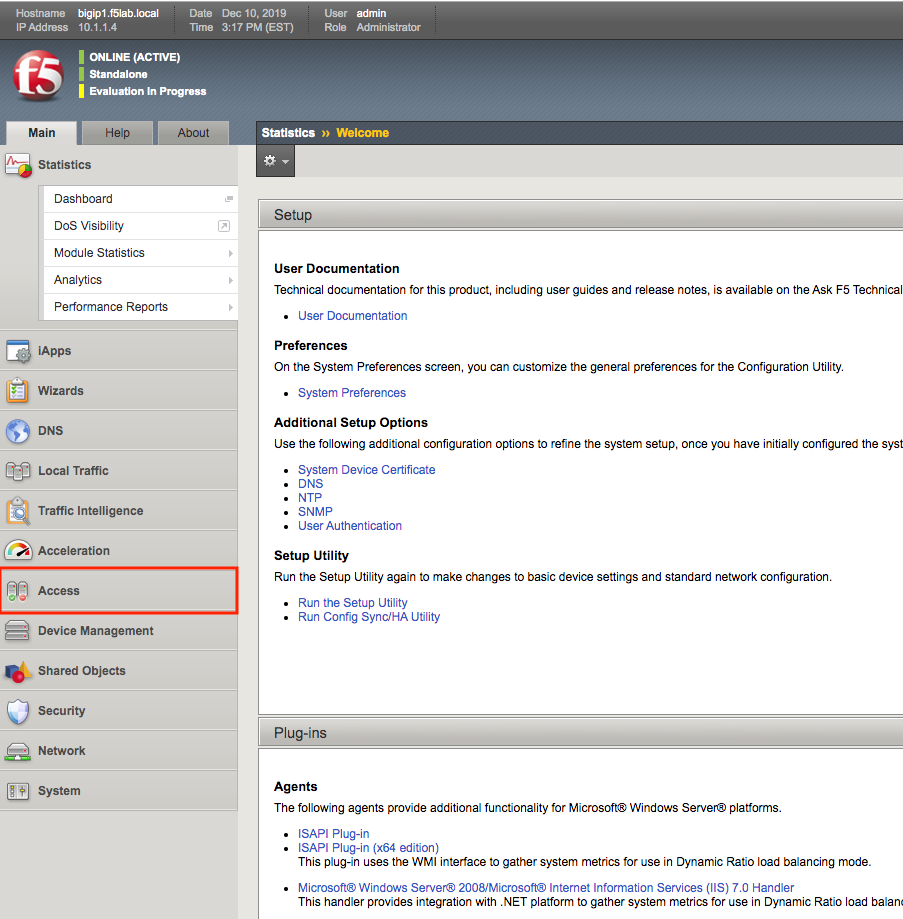
- From the web browser, click on the Access tab located on the left side.
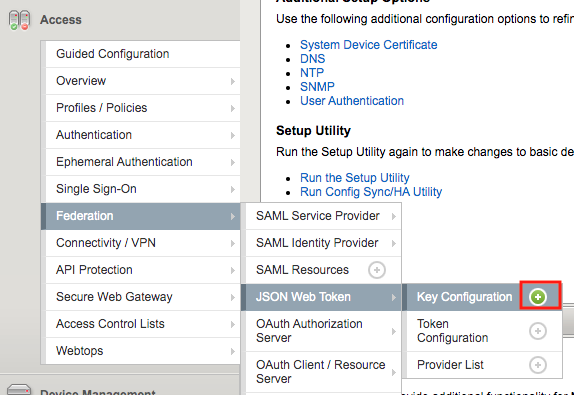
- Navigate to Federation >> JSON Web Token >> Key Configuration. Click the + (Plus Symbol)
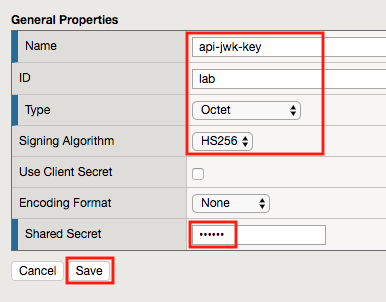
- Configure the following parameters:
- Name: api-jwt-key
- ID: lab
- Octet: Octet
- Signing Algorithm: HS256
- Shared Secret: secret
- Click Save
Task 2 - Create an Authorization Provider
- Navigate to Federation >> OAuth Client/Resource Server >> Provider. Click the + (Plus Symbol)
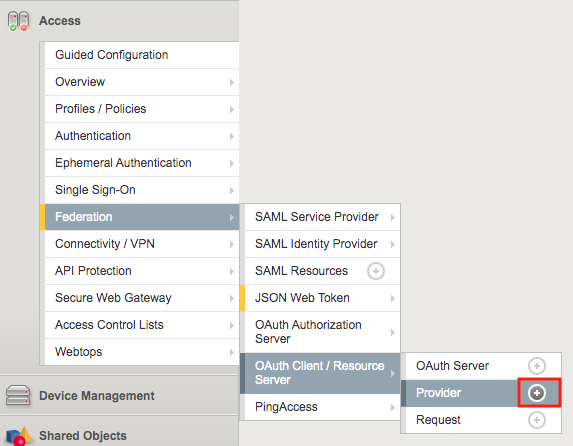
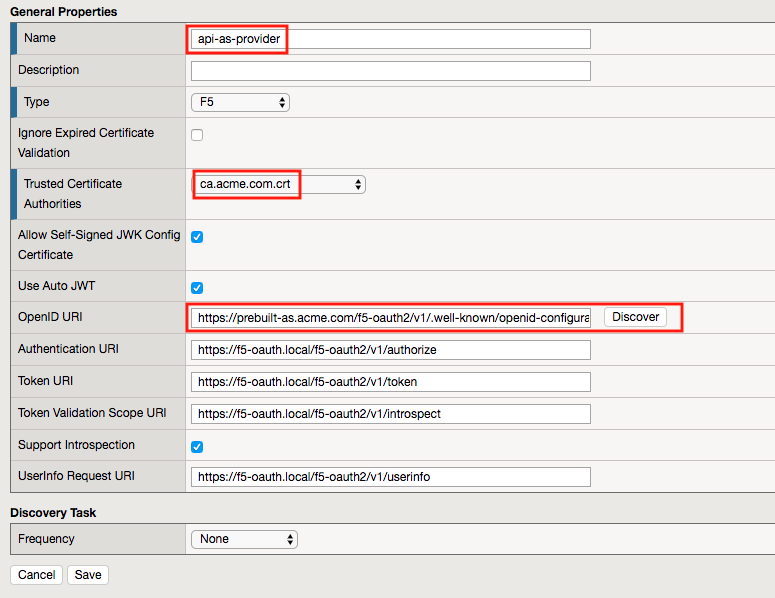
- Configure the following parameters:
- Name: api-as-provider
- Trusted Certificate Authorities: ca.acme.com.crt
- OpenID URL: replace f5-oauth.local with prebuilt-as.acme.com
- Click Discover
- The Authentication URI, Token URI, Token Validation Scope URI, and UserInfo URI should be updated
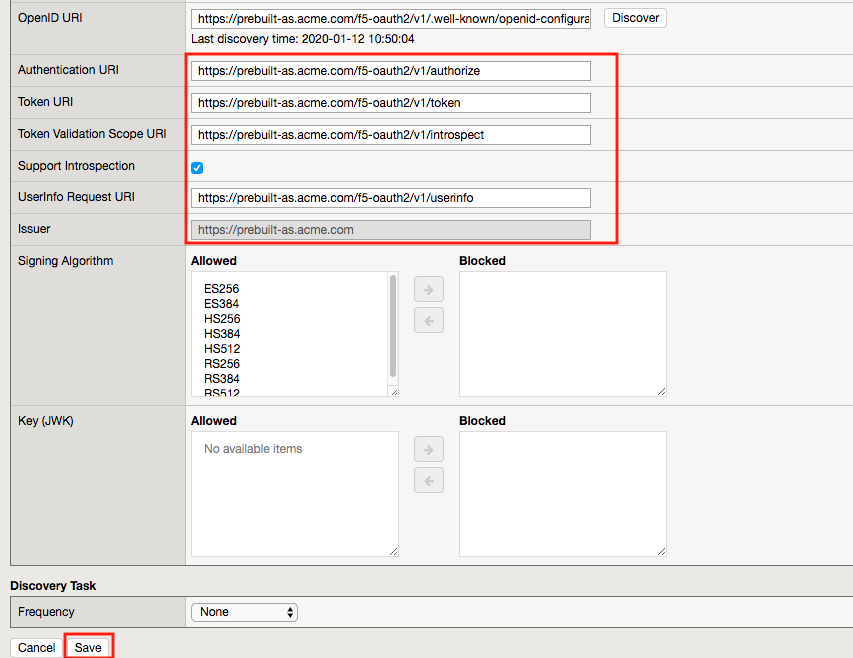
- Click Save
Task 3 - Customize the Token Configuration
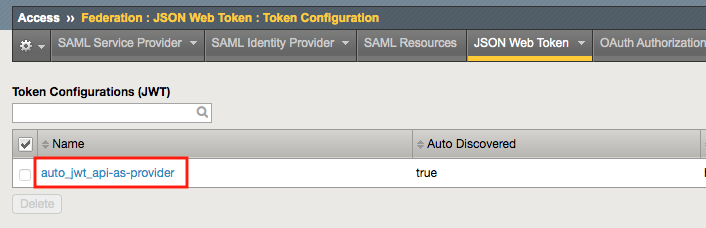
- Navigate to Federation >> JSON Web Token >> Token Configuration. Click Token Configuration, not the + (Plus Symbol)
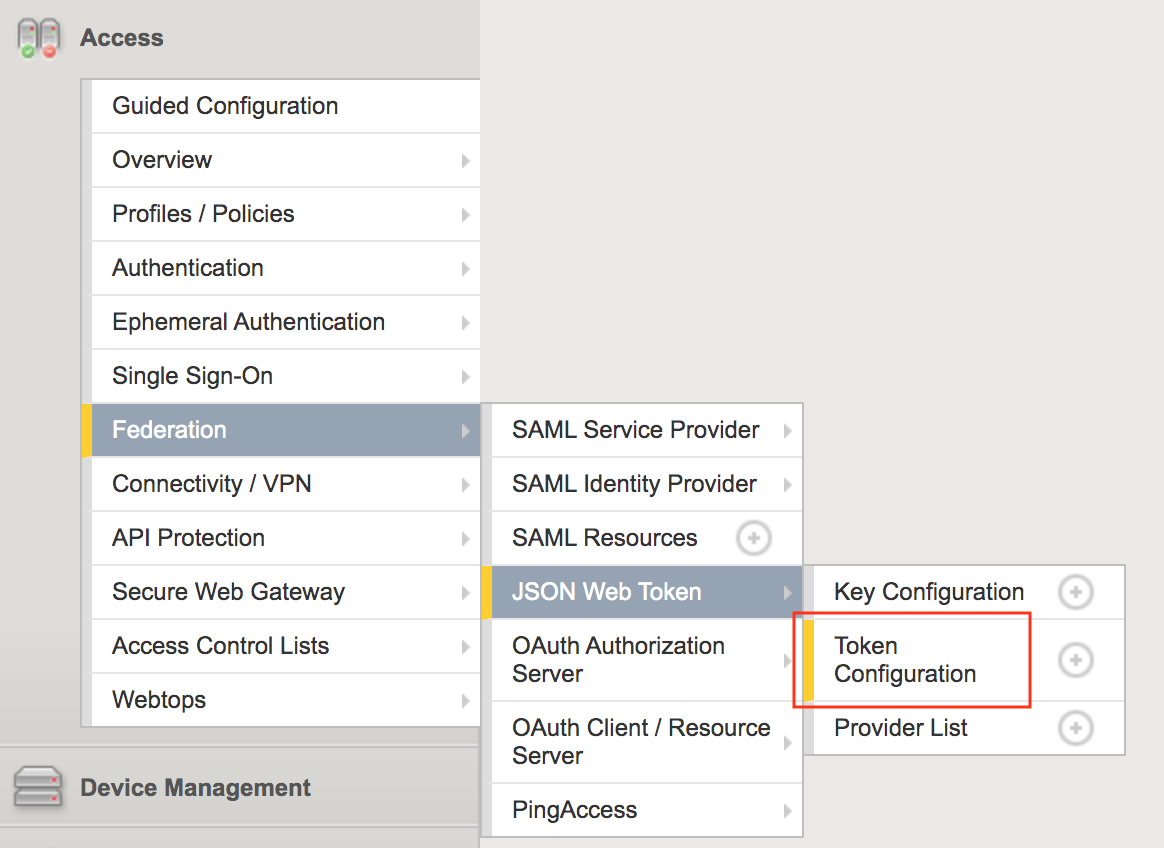
- Click on auto_jwt_api-as-provider
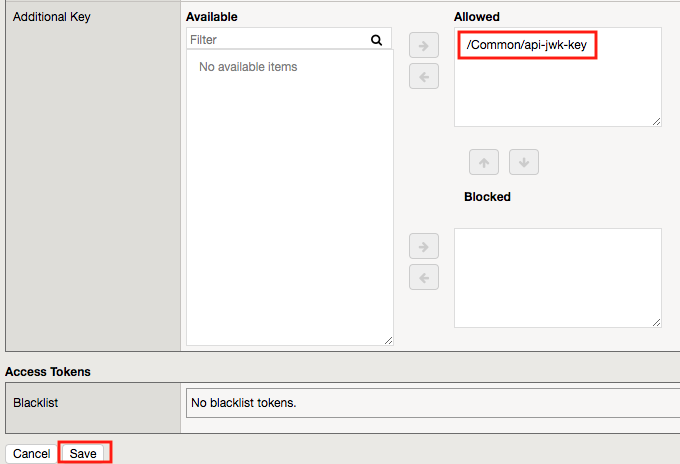
- Move api-jwk-key from Available to Allowed
- Click Save
Task 4 - Create a JWT Provider
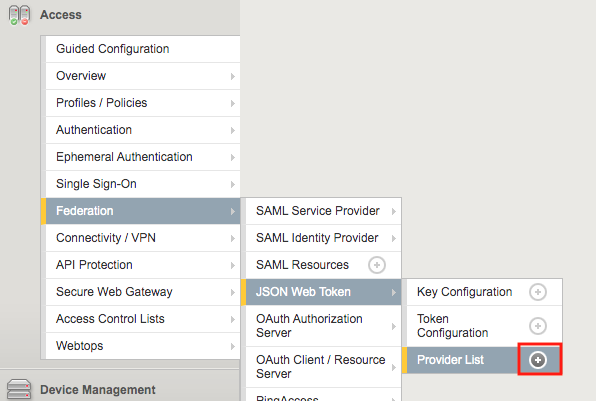
- Navigate to Federation >> JSON Web Token >> Provider List. Click the + (Plus Symbol)
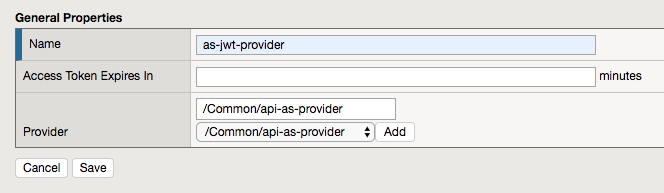
- Enter the name: as-jwt-provider
- Click Add so api-as-provider is added to list of providers
- Click Save